Dismissing & Tracking Issues
ClearSight tracks issues across crawls so you can see what’s been fixed, what’s new, and what you’ve decided to ignore.
Issue statuses
| Status | Meaning |
|---|---|
| Open | Active issue, not yet addressed |
| Fixed | Was open in a previous crawl, not found in the latest one |
| Dismissed | You’ve reviewed it and decided not to fix it |
| Can’t Fix | Third-party content or a known limitation — won’t be fixed |
Dismissing an issue
- Open the issue in the Visual Inspector
- Click Dismiss
- Choose a reason: False positive, Won’t fix, or Can’t fix
Dismissed issues are excluded from your accessibility score and won’t reappear in future crawl comparisons unless the underlying element changes.
Dismissing an issue doesn’t mean it goes away for real users. Only dismiss genuine false positives or issues you’ve made an informed decision not to fix.
How tracking works across crawls
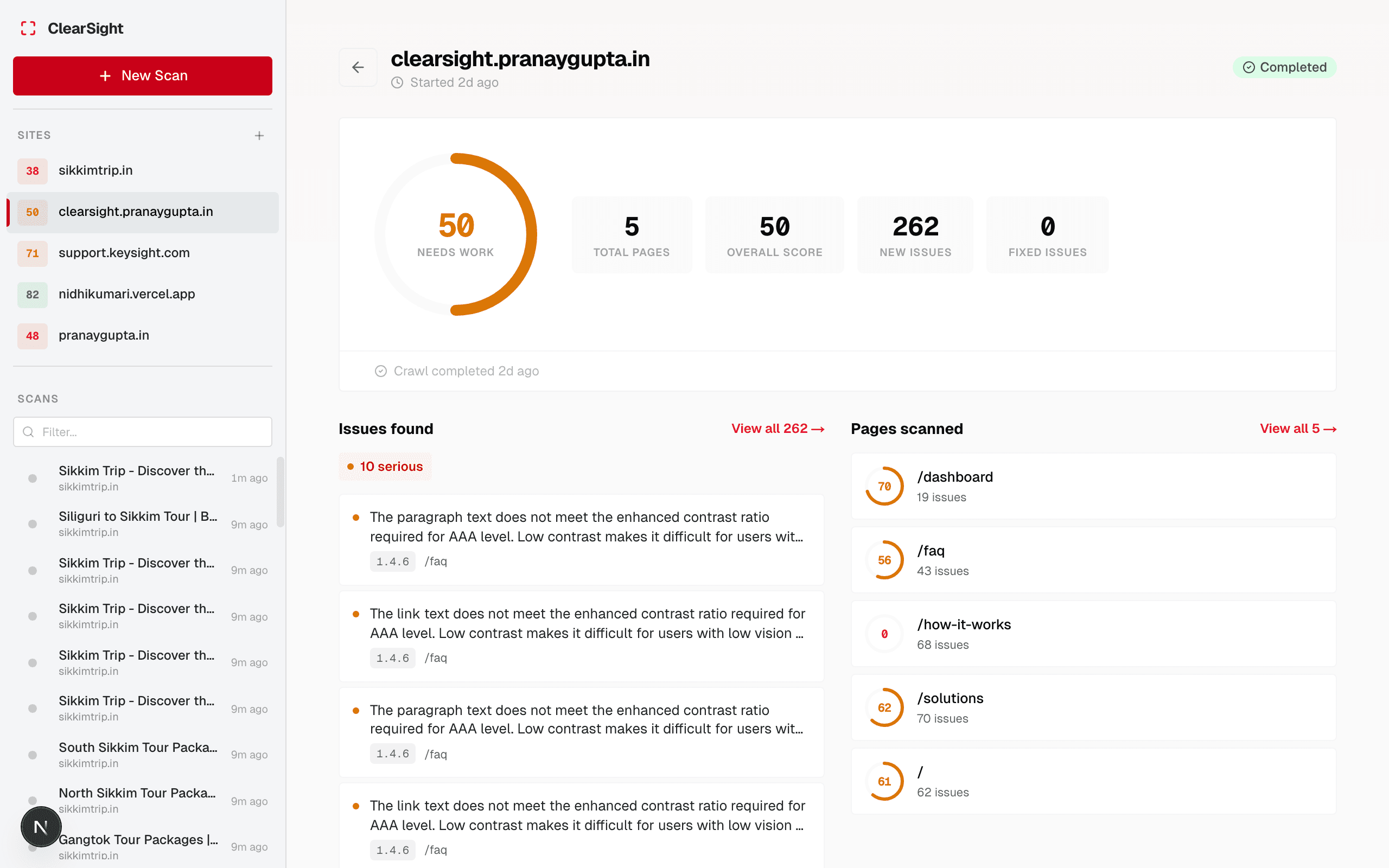
ClearSight uses a fingerprint of each issue (element selector + rule + page URL) to match issues across crawls. When you run a new crawl:
- Issues from the previous crawl that are still present → stay Open
- Issues that no longer appear → marked Fixed
- New issues not seen before → appear as New
This lets you measure progress over time and catch regressions.
Next steps
Last updated on