Visual Inspector
The Visual Inspector lets you see exactly where an issue appears on the page and what the underlying HTML looks like — without leaving ClearSight.
Opening the inspector
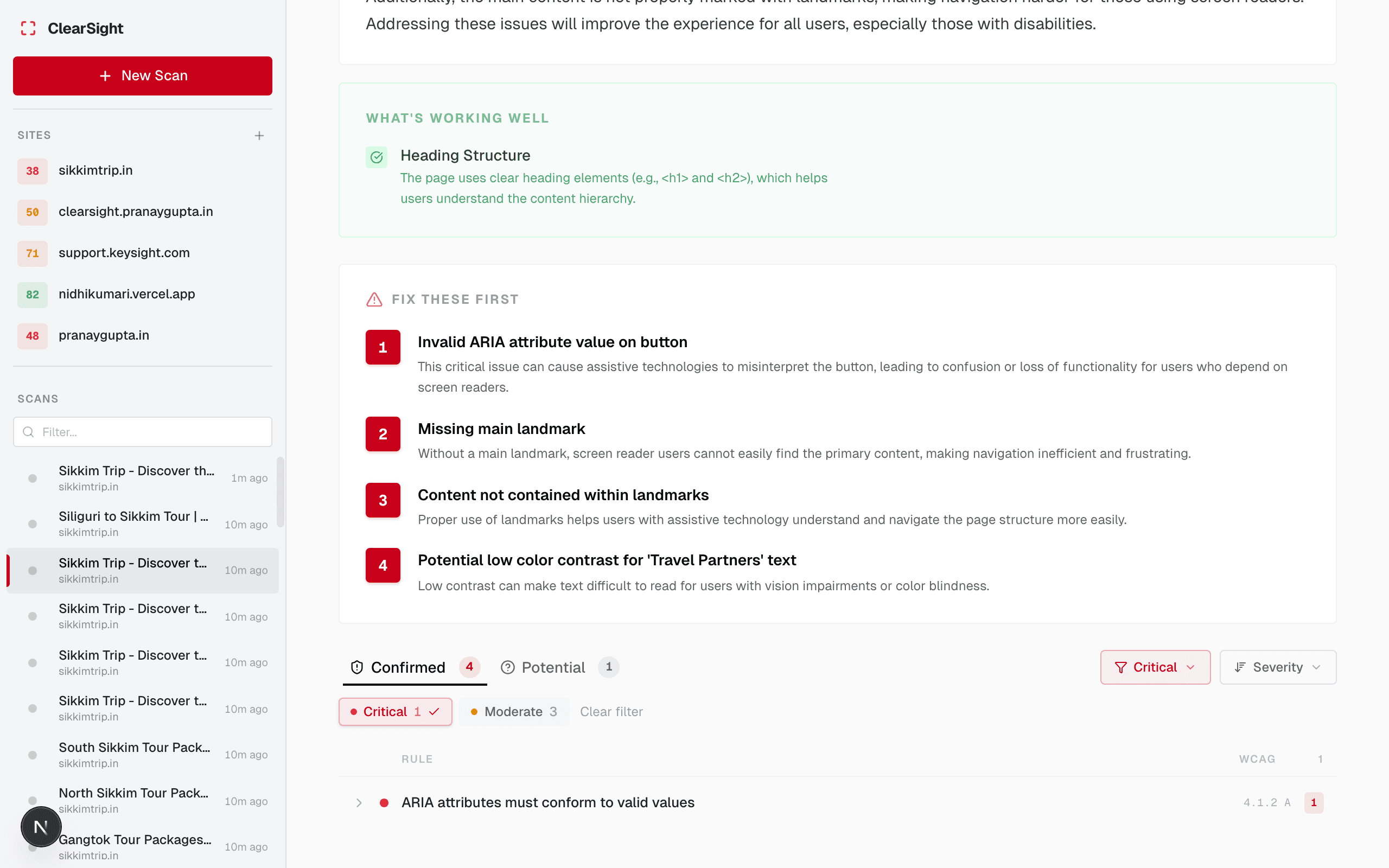
Click any issue in your scan results. The inspector opens in a side panel showing:
- A screenshot of the page with the affected element highlighted
- The element’s HTML
- The issue description and fix suggestion
Two view modes
Page view
Shows the full page screenshot with the problematic element highlighted. Use this to understand the issue in context — where it is on the page, what surrounds it, how a user would encounter it.
HTML view
Shows the raw HTML of the affected element. Use this when you need the specific selector or markup to find the element in your codebase.
Keyboard shortcuts
| Key | Action |
|---|---|
Escape | Close the inspector |
↑ / ↓ | Navigate to previous / next issue |
Next steps
Last updated on